
JPG to Text — Extract Text from JPG & JPEG Images
Upload a .jpg photo of a page, receipt, whiteboard or screenshot and get clean, editable text back. Tables stay tables, formulas stay LaTeX. Copy it, or export to Word or Excel.
Drag & drop, click to upload, or paste (Ctrl+V)
JPG, PNG, WebP, HEIC, GIF, BMP · Max 10MB
Working with a table rather than a block of prose? The JPG to Excel converter runs the same extraction and downloads it as a .xlsx workbook instead.
Why Use This JPG to Text Converter?
Built for camera photos
Skewed phone shots, uneven light and JPEG artefacts are the normal case, not the exception. No pre-processing needed.
Layout, not just letters
Headings, lists and tables come back as Markdown, and maths comes back as LaTeX — so the result is editable, not just readable.
Free, no signup
No account and no quota. Copy the text, or export straight to .docx or .xlsx.
Why JPG is the hardest format for OCR
JPEG is lossy by design. It discards detail with an 8×8 block transform, and most phones and cameras also halve the colour resolution through chroma subsampling. On a photo of a printed page that shows up as faint ringing around thin strokes — exactly the detail that separates `l` from `1`, `rn` from `m`, and a comma from a decimal point. A 200 KB JPEG of an A4 page carries roughly a tenth of the information of a 300 dpi PNG, which is why the same page can convert cleanly as PNG and come back with typos as JPEG.
Forwarding makes it worse. Every time a photo passes through WhatsApp, WeChat, or an email client that resizes attachments, it is re-encoded and a little more detail disappears. A page that was borderline after one hop is often unreadable after three.
Two things make it tractable here. The JPEG is sent to the model as it is — it is not thresholded to pure black and white first, which is what older OCR engines did and what turns a 40% grey stroke into nothing at all. And because the model reads layout rather than one glyph at a time, a damaged letter is usually recovered from the word around it.
Digitising papers, textbooks and lecture slides
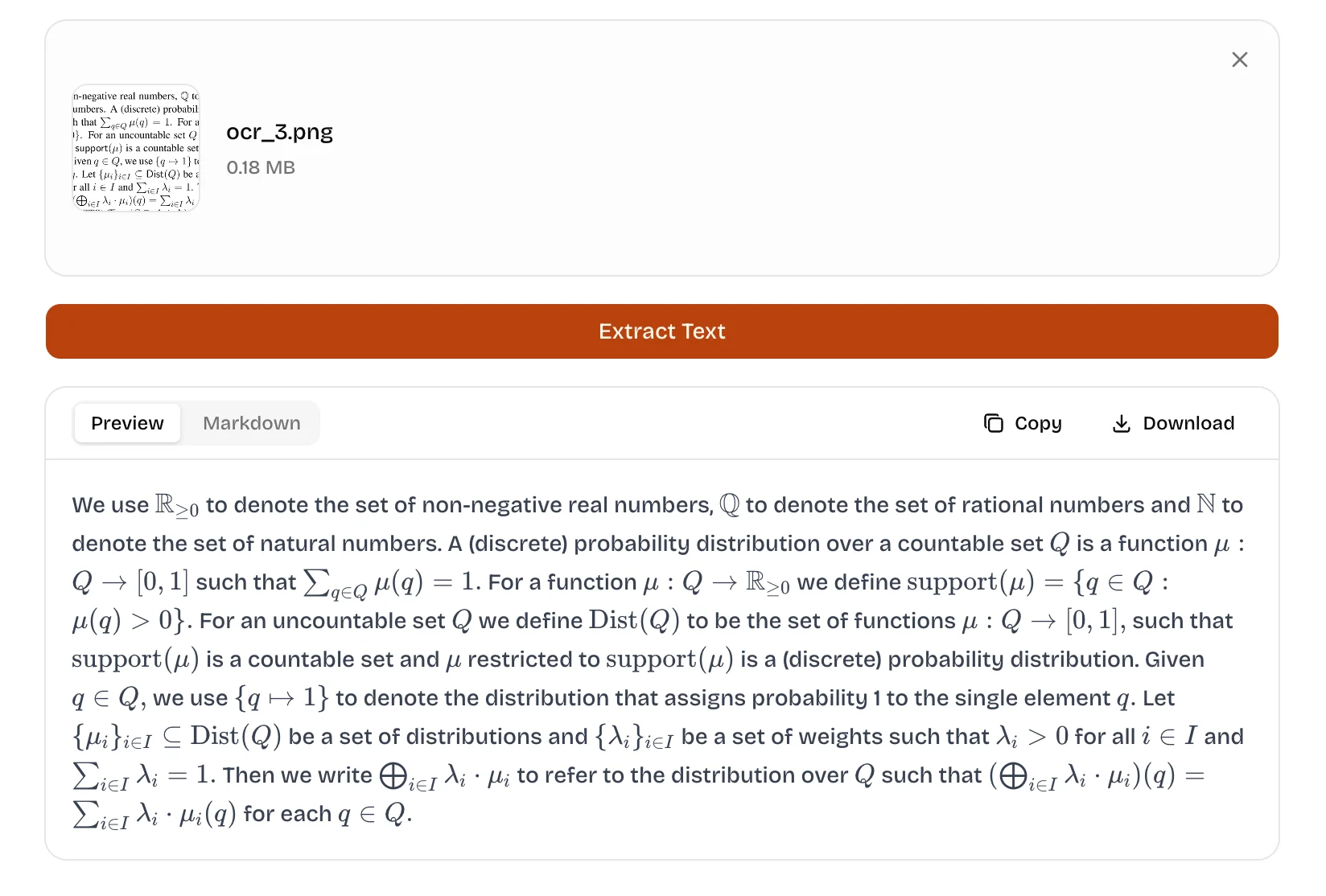
The most common reason to open a JPG to text converter is a page you do not want to retype: a lecture handout, a chapter of a textbook, a printed report somebody handed you, or a slide photographed at a conference. The screenshot below is one real run — a single page of a paper, converted with the notation still intact.
What comes back is not a flat blob of characters. Headings stay headings, lists stay lists, tables stay tables, and inline notation keeps its markup — so the result is something you can search, quote and edit, rather than something you have to clean up before it is useful.
Where your .jpg files actually come from
Almost nobody converts a pristine JPEG. The files that land in this tool are usually one of these:
- Phone photos — `IMG_4821.jpg`, the most common case and the one with the most perspective distortion.
- Chat apps — a page photo or screenshot forwarded through WhatsApp, WeChat or Telegram, re-compressed at every hop.
- Office scanners and copiers — most “scan to email” devices export JPEG at 150–200 dpi, often greyscale.
- Scanning apps — CamScanner, Adobe Scan and Apple Notes already deskew and boost contrast, which helps — until the “enhance” filter clips thin strokes entirely.
- Screenshots — Windows and Android viewers save .jpg or .png depending on the tool, and screenshotting a PDF page is the usual workaround when the PDF is locked.
Getting a clean result from a mediocre photo
Accuracy is decided before the file is uploaded. Six things matter, roughly in this order:
- Shoot straight on. Twenty degrees of tilt costs more accuracy than 100 dpi of resolution does.
- Fill the frame with the page. An A4 sheet photographed from a metre away spends most of the sensor on the desk.
- Light from the side. On glossy paper, direct flash produces a glare band that erases a whole line of text.
- One page, one image. Two columns across a book fold confuse reading order long before they confuse character recognition.
- 150 dpi is plenty for 10–12 pt printed text; below 100 dpi, thin strokes start to merge.
- Never upscale in an image editor — interpolation adds pixels, not information.
How to Convert a JPG to Text
- 1Drop your .jpg or .jpeg file onto the upload area, click it to browse, or paste a screenshot with Ctrl+V.
- 2Press “Extract Text” and wait a few seconds while the model reads the page.
- 3Check the result and copy the text — tables and formulas are already in Markdown and LaTeX.
- 4Need a file instead of text? Export the result to .docx or .xlsx in one click.
JPG, PNG or screenshot — which should you upload?
All of them work, but the format decides how much detail survives the trip. When you have a choice, prefer the lossless one.
| Source | Best format | Why |
|---|---|---|
| Printed page, shot with a phone | JPG, straight from the camera | No conversion step, no extra generation of loss. |
| Screenshot of an app or website | PNG | Lossless — glyph edges stay crisp at 1:1 zoom. |
| Scanned document | PNG, if the scanner offers it | Scanner JPEGs are usually 150–200 dpi greyscale; PNG avoids one more lossy pass. |
| Photo forwarded in a chat app | Re-export from the original | The forwarded copy has already been re-compressed, sometimes twice. |
Frequently Asked Questions
How do I convert a JPG to text?
Drop the .jpg file onto the upload area, click it to browse, or paste a screenshot with Ctrl+V, then press “Extract Text”. The recognised text appears on the page in a couple of seconds, ready to copy — or to download as Markdown, Word or Excel.
Does it work with .jpeg files as well as .jpg?
Yes. .jpg and .jpeg are the same format with a different extension, and both are accepted. PNG, WebP, HEIC, GIF and BMP also work — those are converted to PNG in your browser before the upload, so nothing is lost on the way out.
What is the maximum file size?
10 MB per image, which covers a 12-megapixel phone photo at full resolution. There is no page or daily limit — you can convert as many images as you need.
Can it read handwriting in a photo?
Yes, including handwritten notes, whiteboards and forms, though handwriting is harder than print: cursive and joined-up script lose accuracy quickly. Block letters on unlined paper, shot straight on, come out well.
Are tables and formulas preserved, or flattened?
Preserved. Tables come back as Markdown tables with rows and headers intact, and equations come back as LaTeX rather than mangled ASCII — so `\frac{1}{2}` stays a fraction instead of turning into `1/2`.
Which languages are supported?
English and Chinese are the strongest. Other Latin-script languages usually work for printed text, but accuracy drops for accented characters and for scripts the model has seen less of. A quick manual check is worth it before you rely on the output.
Is my JPG uploaded and stored?
The image is sent to the OCR model to be read, then discarded — it is not written to disk, not stored in a bucket and not used for training. Nothing about the file is retained after the request finishes.
Is it really free?
Yes — no account, no credit card, no watermark and no daily quota to unlock. Open the page and convert.